Flute Calculator gadget for VCarve and Aspire
Paste the design code from the calculator and the gadget draws both halves of your flute, split down the middle and laid out as side views, then makes every toolpath with sensible default bits.
Download the gadget (.vgadget) Download as .zip
Version 1.0. For VCarve Pro and Aspire. Free for anyone to use.
Install
- In VCarve or Aspire, choose Gadgets › Install Gadget and pick the
.vgadgetfile. (With the .zip, copy the "Flute Calculator Layout" folder into your Vectric Gadgets folder and restart.) - It now appears in the Gadgets menu.
Use
- Design your flute in the calculator and click Copy code for VCarve.
- Make a new job. Set the material thickness to the thickness of one half (the calculator lists it under "Wood and cutting"), and Z zero on the material surface.
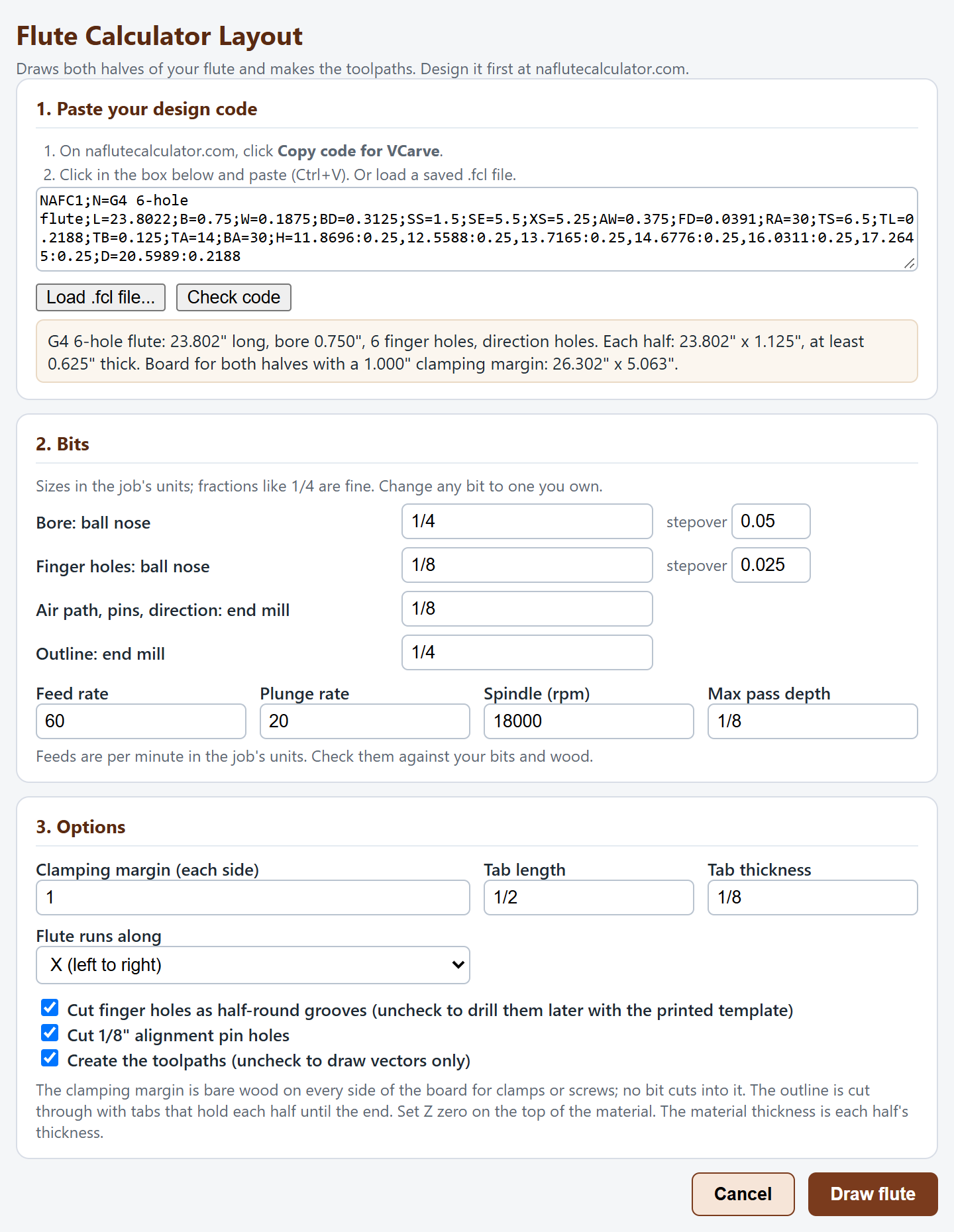
- Run Flute Calculator Layout, paste the code, check the bits and feeds, and click Draw flute.
- Preview the toolpaths, then save them for your machine.
The full walkthrough, with glue-up and tuning, is in Cutting a flute with VCarve.
What it makes
| Cut | Default bit | How |
|---|---|---|
| Bore (both chambers) | 1/4" ball nose | Side-by-side passes, each just touching the true half circle. Any ball nose up to the bore size works. |
| Breath hole | 1/4" ball nose | Same way, smaller circle. |
| Finger and thumb holes | 1/8" ball nose | Half-round grooves at the starting size. Glued up, they make round holes you open up to tune. |
| Air path | 1/8" end mill | One pocket: exit hole, ramp, flue, sound hole and splitting edge, with the angles from your design. |
| Alignment pins | 1/8" end mill | Three short holes per half for 1/8" pins. |
| Direction holes | 1/8" end mill | Through each half, one per side. |
| Outline | 1/4" end mill | Cut through, last. |
Feeds and speeds are starting values; set them for your machine and wood. The gadget remembers your bits for next time. Uncheck "Create the toolpaths" to get the vectors only.
Not using VCarve?
The calculator also downloads both halves as SVG and DXF, full size, on named layers, for any CAD or CAM program.